Skip to content

소상공인 리뷰 답글 AI 도우미

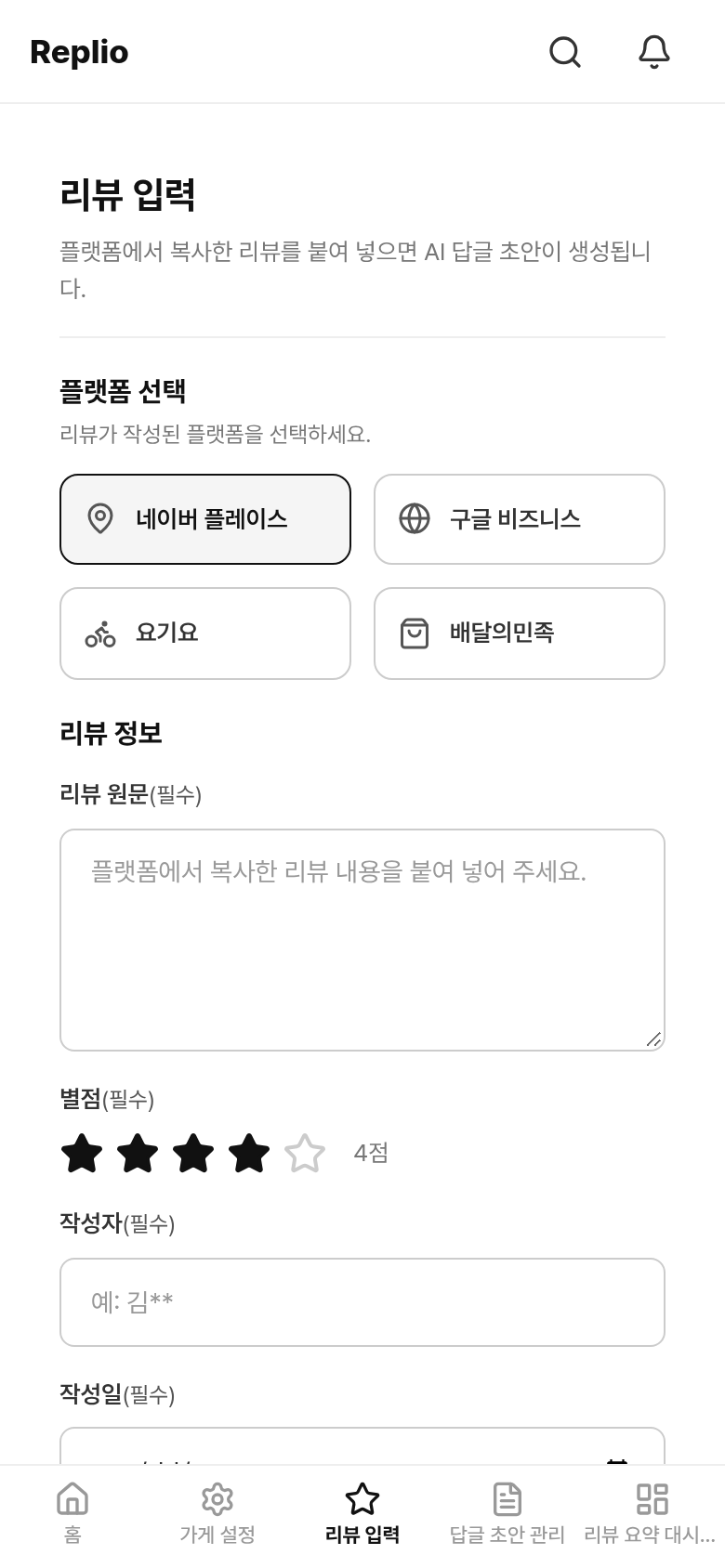
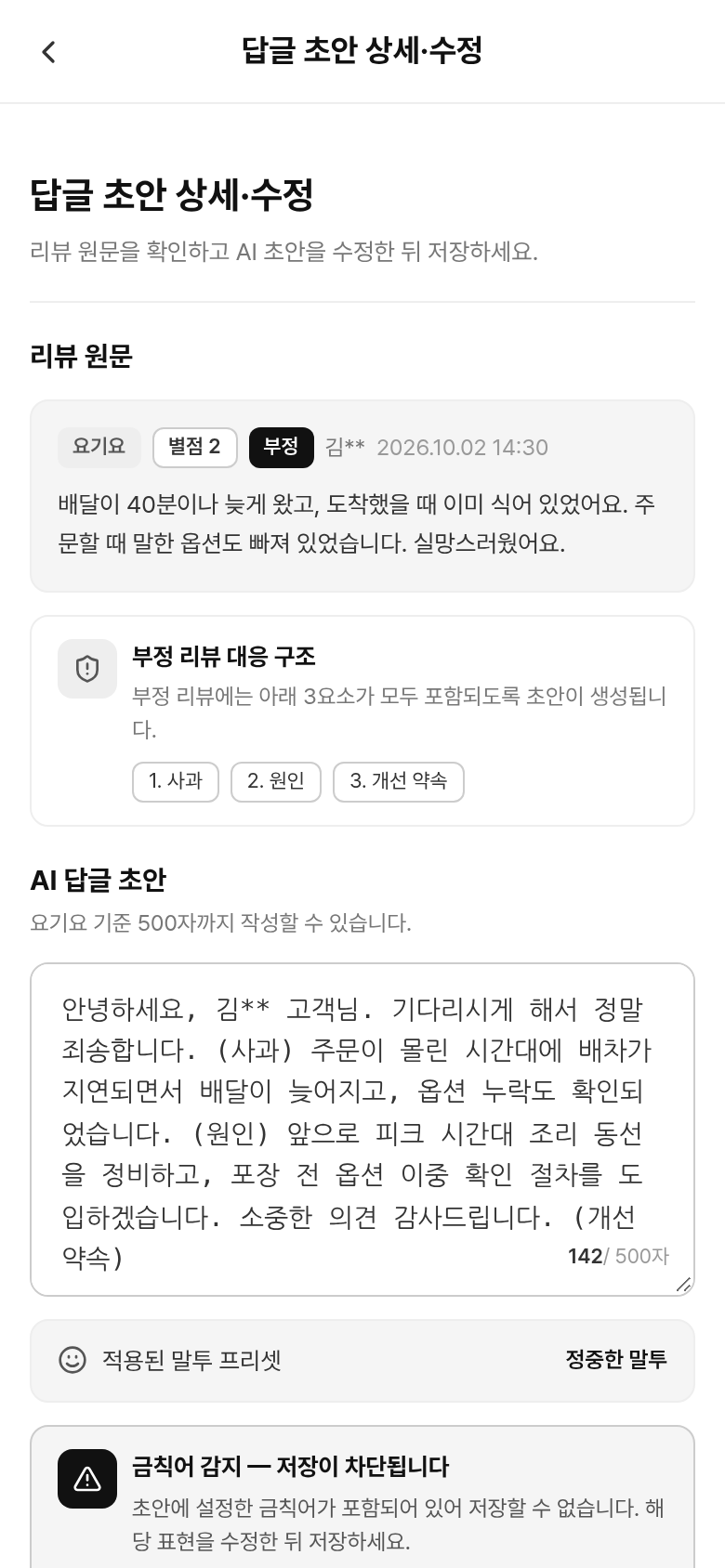
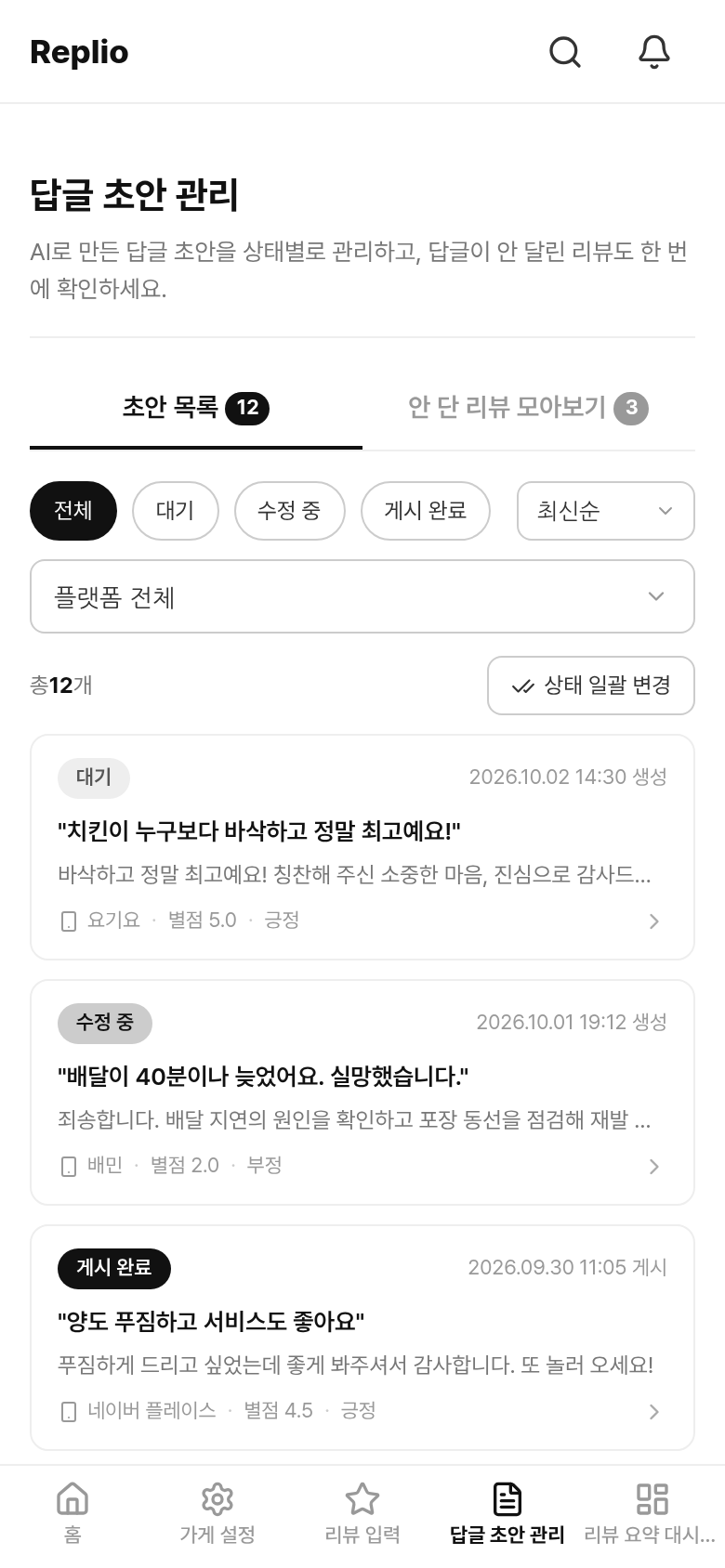
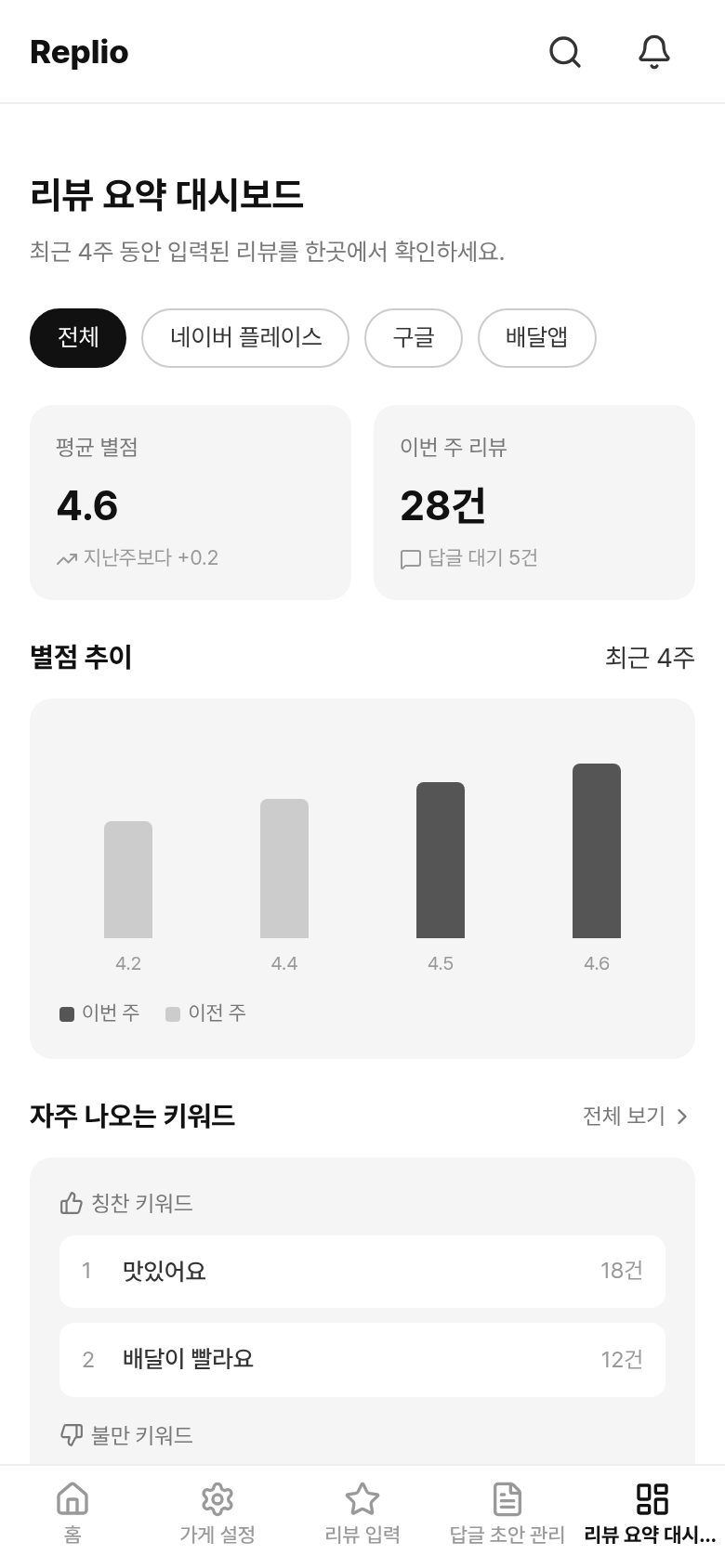
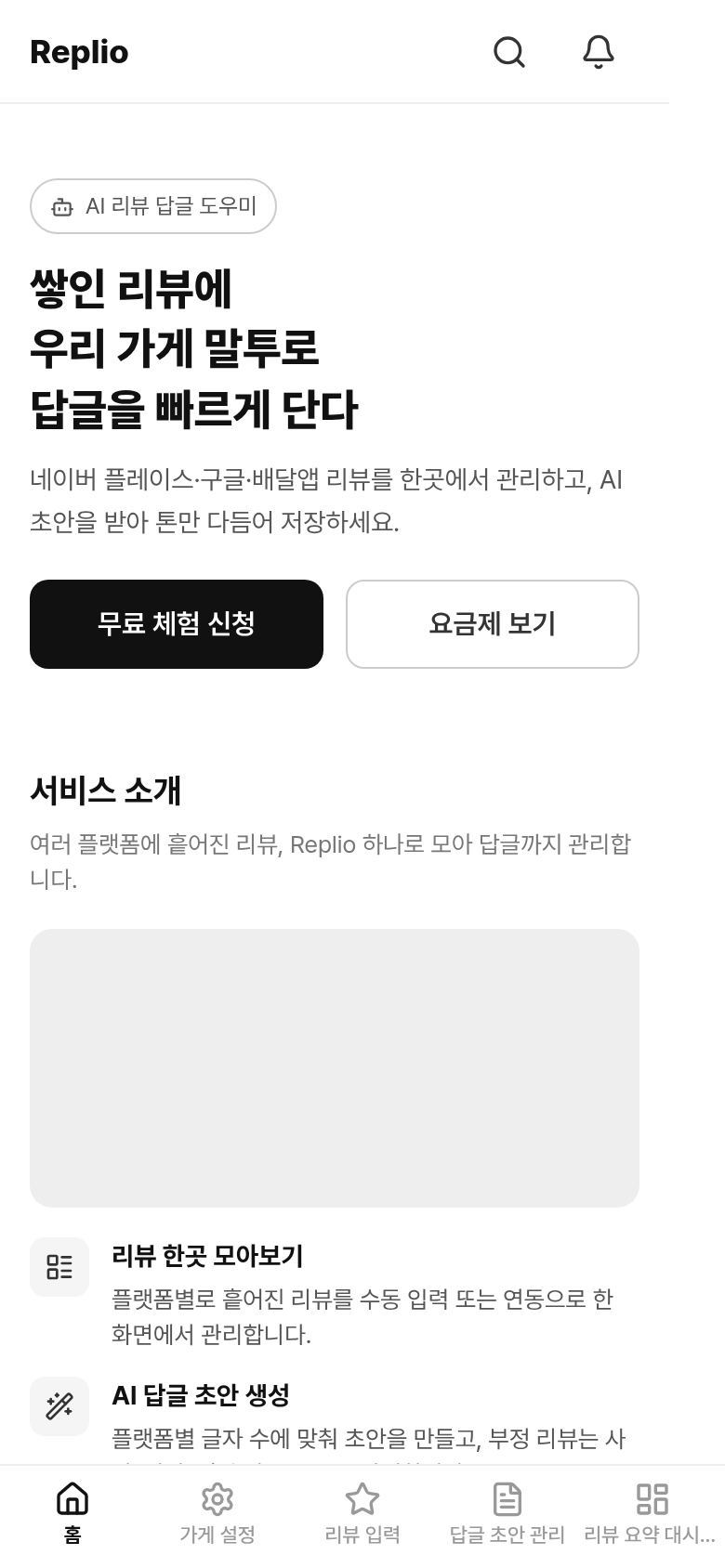
리뷰를 붙여 넣으면 우리 가게 말투로 답글 초안을 만들고, 플랫폼별 글자 수 맞춤·부정 리뷰 사과 구조·금칙어 차단·초안 일괄 관리·별점 추이 대시보드·월 구독과 운영자 화면까지 담은 SaaS 기획이에요.

Cover of 소상공인 리뷰 답글 AI 도우미
A good fit for
  • 예비 창업자
  • 소상공인
  • 바이브 코더

Browse the real screens

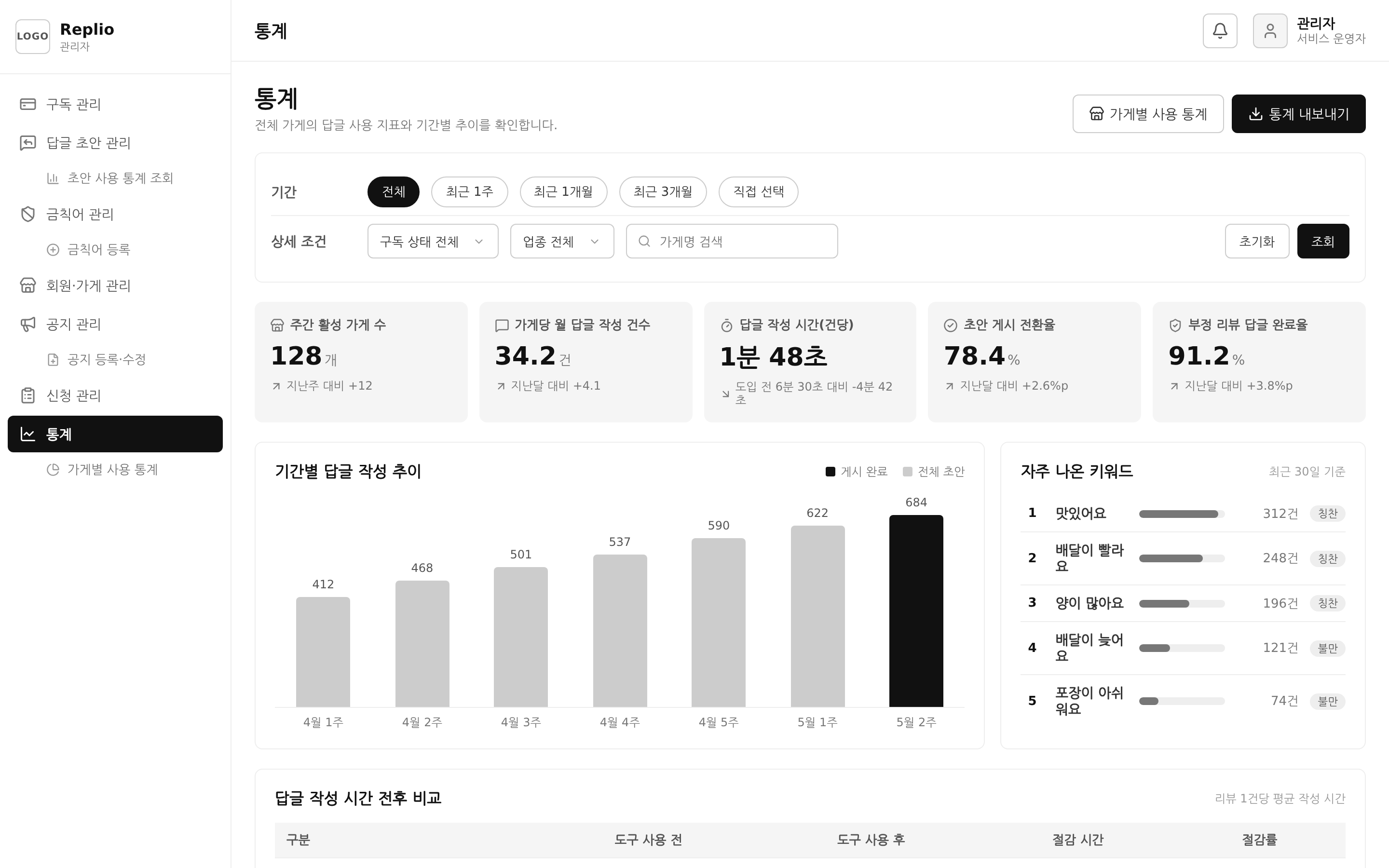
These are the actual screens in the kit. Pick a name above to switch screens, and toggle desktop or mobile.

답글 초안 관리 (사용자)

PC(This screen is mobile only) Mobile

At a glance

What is actually in this kit, and how you receive it.

Screens
45
IA screens
45

What's inside

  • Idea InterviewA document of your service idea, shaped by answering questions. MD, PDFInterview only and up
  • IA documentA document that lays out the menu structure and screen list in tables. MD, Excel, PDFInterview + IA and up
  • Dev Planning KitA bundle of screens and a planning document an AI reads and builds from. ZIPFull set
  • Screen Design copyCopy the same screen design into your workspace and edit it yourself. My workspaceFull set

How you get it

  1. Choose an optionPick the option you need and pay. You need to be logged in.
  2. Download from My packsAfter payment, download the MD, PDF, and Excel files.
  3. Open Screen DesignWith the Full set, the screen design is copied into your workspace.

What changes with each way of building?

The same AI coding tool (Claude Code, Cursor, and others) takes a different amount of time, finishes differently, and fails differently depending on the planning you hand it.


A solo founder late at night, hand on their head, facing an error on a messy desk

When you ask an AI with no planning

  • Build timeFast at first, then fixes drag it out
  • CompletenessIt ends with screens and features still missing
  • Starting overThe AI guesses, and you rebuild again and again
  • DesignYou get the AI's default look
  • Launch prepTerms and launch prep are missing
A solo founder smiling at a tidy desk, with a finished screen and a checklist

When you ask with the Plandi Full setRecommended

  • Build timeA check up front, then fewer blockers
  • CompletenessThe planned screens and features all come out
  • Starting overIt follows the specs, so you redo less
  • DesignPick 1 of 3 drafts and apply it to every screen
  • Launch prepYou get a pre-launch checklist and a launch guide

Here is how the options compare. A fuller bar means it finishes sooner, comes out more complete, and fails less.

How building differs by option (a fuller bar means the AI gets stuck less)
Compared No planning Interview only Interview + IA Full setRecommended
Time to finish Slow Slow Medium Fast
Details
No planning
The first screen shows up fast, but finding and fixing what is missing takes a long time.
Interview only
What to build is settled, but deciding the screens as you go takes a long time.
Interview + IA
A screen list means less wandering, but you still decide the look and behavior while you build.
Full set
A kit check up front clears the blockers, then you build menu by menu from the screens and specs.
Completeness Gaps Screens Listed Complete
Details
No planning
You build whatever comes to mind, so screens and features are often left out.
Interview only
The big features land, but screens are easy to miss.
Interview + IA
You build from the menu and screen list, but button behavior and error handling are easy to miss.
Full set
Screens, specs, and a done checklist let you confirm each screen works before you finish.
Starting over Often Often Sometimes Rare
Details
No planning
What the AI guessed is often not what you wanted, so you start over a lot.
Interview only
The goal is right, but guessed screens and behavior mean rebuilding.
Interview + IA
The structure is right, but guessed behavior still needs fixes.
Full set
Behavior, wording, and error handling are already decided, so the AI guesses less.
Buttons and fields Guessed Guessed Guessed Specified
Details
No planning
The AI builds by guessing.
Interview only
The AI builds by guessing.
Interview + IA
The AI builds by guessing.
Full set
It follows the specs. Error messages, empty screens, and confirmation dialogs are already decided.
Design Default Default Default 3 drafts
Details
No planning
The AI's default look.
Interview only
The AI's default look.
Interview + IA
The AI's default look.
Full set
It makes 3 drafts from the screen design, then you pick one and apply it to every screen.
Privacy, terms, launch Missing Partial Policies Checklist
Details
No planning
Most of it is missing.
Interview only
Whatever came up in the interview.
Interview + IA
Includes the terms and policy screens that are in the IA.
Full set
A pre-launch checklist, a done checklist, and a launch guide.
A fit for Practice Clarify Structure Launch
Details
No planning
When you are practicing, or building something very small.
Interview only
When you want to shape the idea first.
Interview + IA
When you want the structure set, and you will draw the screens yourself.
Full set
When you want to build it and launch.
  • No planning

    Time to finish
    Slow
    Completeness
    Gaps
    Starting over
    Often
    Buttons and fields
    Guessed
    Design
    Default
    Privacy, terms, launch
    Missing
    A fit for
    Practice
    Details
    Time to finish
    The first screen shows up fast, but finding and fixing what is missing takes a long time.
    Completeness
    You build whatever comes to mind, so screens and features are often left out.
    Starting over
    What the AI guessed is often not what you wanted, so you start over a lot.
    Buttons and fields
    The AI builds by guessing.
    Design
    The AI's default look.
    Privacy, terms, launch
    Most of it is missing.
    A fit for
    When you are practicing, or building something very small.
  • Interview only

    Time to finish
    Slow
    Completeness
    Screens
    Starting over
    Often
    Buttons and fields
    Guessed
    Design
    Default
    Privacy, terms, launch
    Partial
    A fit for
    Clarify
    Details
    Time to finish
    What to build is settled, but deciding the screens as you go takes a long time.
    Completeness
    The big features land, but screens are easy to miss.
    Starting over
    The goal is right, but guessed screens and behavior mean rebuilding.
    Buttons and fields
    The AI builds by guessing.
    Design
    The AI's default look.
    Privacy, terms, launch
    Whatever came up in the interview.
    A fit for
    When you want to shape the idea first.
  • Interview + IA

    Time to finish
    Medium
    Completeness
    Listed
    Starting over
    Sometimes
    Buttons and fields
    Guessed
    Design
    Default
    Privacy, terms, launch
    Policies
    A fit for
    Structure
    Details
    Time to finish
    A screen list means less wandering, but you still decide the look and behavior while you build.
    Completeness
    You build from the menu and screen list, but button behavior and error handling are easy to miss.
    Starting over
    The structure is right, but guessed behavior still needs fixes.
    Buttons and fields
    The AI builds by guessing.
    Design
    The AI's default look.
    Privacy, terms, launch
    Includes the terms and policy screens that are in the IA.
    A fit for
    When you want the structure set, and you will draw the screens yourself.
  • Full set Recommended

    Time to finish
    Fast
    Completeness
    Complete
    Starting over
    Rare
    Buttons and fields
    Specified
    Design
    3 drafts
    Privacy, terms, launch
    Checklist
    A fit for
    Launch
    Details
    Time to finish
    A kit check up front clears the blockers, then you build menu by menu from the screens and specs.
    Completeness
    Screens, specs, and a done checklist let you confirm each screen works before you finish.
    Starting over
    Behavior, wording, and error handling are already decided, so the AI guesses less.
    Buttons and fields
    It follows the specs. Error messages, empty screens, and confirmation dialogs are already decided.
    Design
    It makes 3 drafts from the screen design, then you pick one and apply it to every screen.
    Privacy, terms, launch
    A pre-launch checklist, a done checklist, and a launch guide.
    A fit for
    When you want to build it and launch.

We shaped this by building a real service from start to finish with the Full set's Dev Planning Kit. The checks we used then for features, privacy and terms, design, and completeness are in the kit.

What's in the Dev Planning Kit

Real screens and written notes, bundled so the AI does not have to guess. Hand it to any AI coding tool.

Screens
45
IA screens
45
  • PRDOne document that says what you are building, why, and which features have to be in it.
  • Shared rulesThe labels, wording, and behavior every screen follows.
  • IAThe menu structure, plus the address and links for 45 screens.
  • Screen HTML (desktop and mobile)Includes 45 screens you can open right away.
  • SpecsOf 45 screens, 0 have a spec yet. Decide how buttons and fields behave from the screen HTML and the PRD.
  • Click-throughClick through the screens and follow the flow like a real site.
  • Kit checkA check we already ran for places where the documents disagree.
  • Done checklistAfter you build, check each screen against what done looks like.
  • Pre-launch checklistEverything to line up before you open the site.
  • Launch guideA step-by-step guide to putting the finished site on the internet.
  • AI work rules (AGENTS)Rules that tell an AI coding tool how to read the kit and work in order.

Also included

  • Idea InterviewA document of the service idea you shaped by answering questions.MD, PDF
  • IA documentA document that puts the menu structure and screen list into tables.MD, Excel, PDF
  • Screen Design copyCopy the same screen design into your workspace and edit it yourself.Copied to my workspace

How you build once you have the kit

Hand the kit to an AI coding tool and follow the guide through four steps.

  1. STEP 1
    Review

    Click through the planning you received, then let the AI find gaps and fix them.

    • 01Look through the planning
    • 02Check the planning
    • 03Apply the fixes
  2. STEP 2
    Choose a design

    Make the first screen three ways and pick the one you like.

    • 04Design drafts
    • 05Pick a draft and a design system
  3. STEP 3
    Build menu by menu

    Build one menu at a time from the screens and feature notes, and check as you go.

    • 06Build each menu
    • 07Check the done list
  4. STEP 4
    Open the site

    Finish the pre-launch check, then put it online using the guide.

    • 08Prepare to launch

Purchase and refunds

  1. Choose an optionPick the option you need and pay. You need to be logged in.
  2. Download from My packsAfter payment, download the MD, PDF, and Excel files from My packs.
  3. Screen design goes to your workspaceWith the Full set, the screen design is copied into your workspace. Open it and edit it right away.

If building it yourself is too much, you can hand the kit to an expert as-is.

Refunds

This is a downloadable digital product, so refunds may be limited once a download starts. See the refund policy for the details.

Does AI keep building the wrong thing?

Words make AI guess. Show it the screens and it builds them through.

Interview + IA + Screen Design ₩99,000

Contact

You need a Planning Pass to start a new plan

1 Planning Pass = a new plan (IA included) + 20 screens

Sign up and get a trial project

Sign up and you get one trial project: IA and up to 5 screens. A Planning Pass opens 20 screens and file downloads.

Sign up free

See Planning Pass pricing